Robot vacuum error codes come from your machine’s microcontroller and vary by brand—Roborock uses single digits, Narwal uses four-digit codes organized by category. Your first move is checking the manufacturer app, which translates these diagnostics into readable numbers. Most errors point to five main categories: sensors, brushes, motors, power systems, or dock placement. Start by cleaning the component the app indicates before diving deeper. Persistent errors after cleaning usually mean hardware failure, not temporary blockage—that’s when professional support becomes your next step.
Key Points
- Error codes vary by brand: Roborock uses single digits, Narwal uses four-digit codes, while Shark and iRobot use proprietary systems.
- Check your manufacturer’s app first to translate error codes into readable numbers and identify the affected component.
- Most errors stem from five categories: sensors and navigation, brushes and drive mechanisms, power systems, dock placement, or internal components.
- Start troubleshooting by cleaning the indicated component: remove debris from brushes, empty bins, clean sensors, and verify dock alignment.
- Persistent errors after cleaning indicate hardware failure; contact professional support for motor replacement, battery issues, or sensor malfunctions.
How Robot Vacuum Error Code Systems Work Across Major Brands
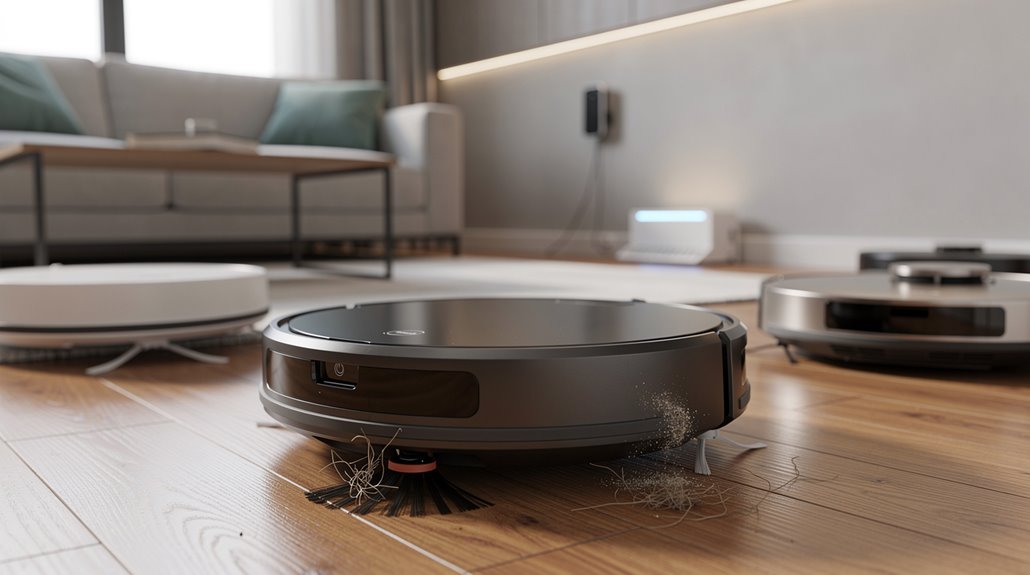
When you’re staring at an error code on your robot vacuum’s app, you’re looking at one of several completely different systems depending on which brand you own.
Roborock keeps things simple with single digits.
Narwal uses four-digit codes organized by category.
Shark and iRobot follow their own approaches entirely.
Understanding your brand’s robot vacuum error code system matters before you troubleshoot anything. Most robot vacuums use error codes to identify issues across five main categories: sensors & navigation, brushes & drive mechanisms, power systems, dock placement, and internal components. Brands like Roborock and Dreame prioritize navigation accuracy in their error reporting systems, which is why these codes often relate to mapping and obstacle detection failures.
What Robot Vacuum Wheel and Drive Motor Error Codes Mean
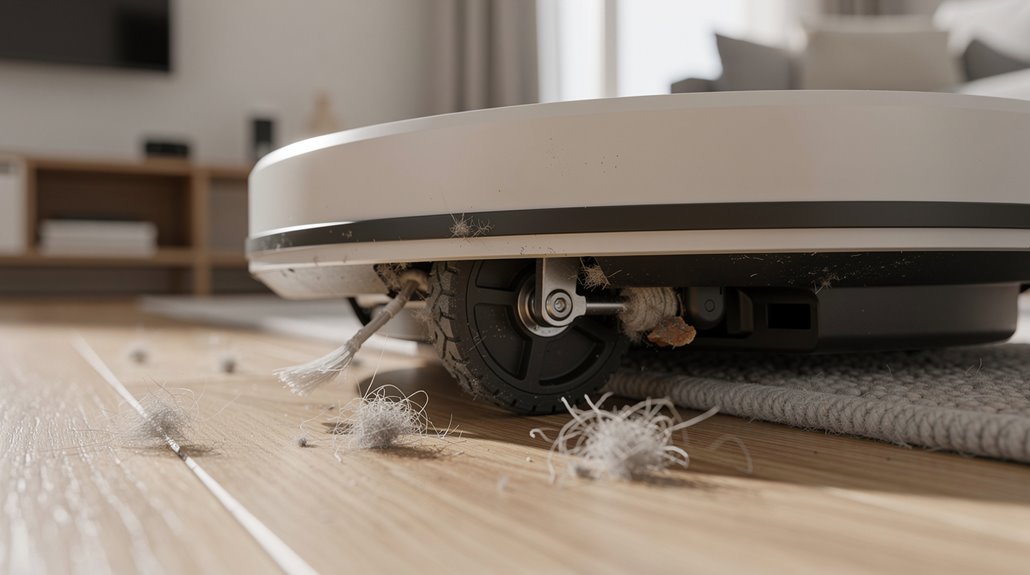
When you’re troubleshooting wheel issues, you’ll need to separate mechanical jams from actual motor failures—a stuck wheel usually spins freely when you manually rotate it, while a dead motor bearing won’t budge and often makes grinding sounds. For drive wheel malfunctions indicated by error codes 1014, 1015, or 1016, rotate the rear drive wheels to check for speed consistency across both wheels. Side brush motor errors typically show up as codes specific to that component (like bObsweep’s error 00 or 01 for individual wheels), and they signal either debris blocking the brush assembly or internal bearing wear rather than a power delivery problem. Regular cleaning of brushes and wheels is essential to prevent these motor errors from occurring in the first place, ensuring optimal performance and extending the lifespan of your robot vacuum’s components.
Understanding which type of failure you’re dealing with saves you from replacing parts that work fine while the real culprit sits unaddressed.
How to diagnose a stuck wheel vs a failed wheel motor bearing
Figuring out whether your robot vacuum wheel is just stuck or actually broken comes down to understanding what you’re looking at when a robot vacuum wheel error code pops up.
Spin both rear wheels by hand. If they rotate freely, you’ve got debris tangled somewhere—hair, carpet fibers, dirt. Clean it out, restart, and watch if the error clears. Use a cleaning tool or compressed air to remove any stubborn blockages from the wheel assembly.
No resistance means motor bearing failure. That needs professional support. If the error persists after you’ve cleared all visible debris and the wheels spin freely, contact Shark Support to rule out internal mechanical damage or motor failure that may not be immediately apparent.
What side brush motor error codes indicate at the hardware level
Side brush motor errors tell you something specific about what’s happening inside your vacuum—they’re almost always about resistance or strain on the motor itself, not just a stuck brush.
Here’s what’s actually failing:
- Motor overload from tangled hair or debris jamming the brush
- Internal motor bearing wear causing increased friction and error codes
- Persistent errors after cleaning indicate motor failure, not temporary obstruction
Your robot vacuum motor error codes point to hardware strain that cleaning alone won’t fix. When you encounter codes like L0x4 or L0x8, you should check if jammed or tangled by obstacle as the first troubleshooting step before assuming hardware failure.
What Robot Vacuum Sensor Error Codes Mean
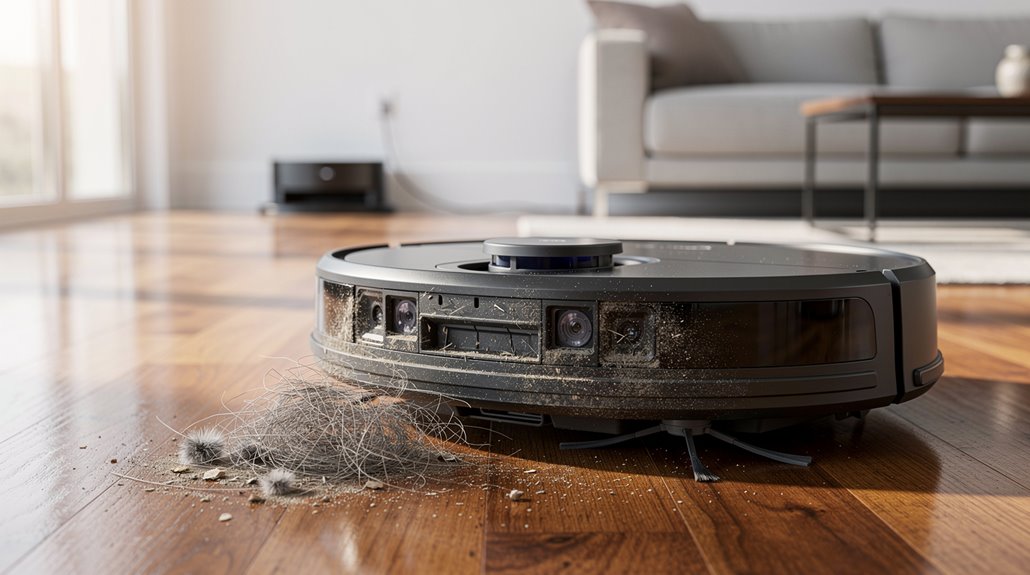
Sensor errors crop up when your robot can’t see or measure its surroundings properly, and they’re way more common than you’d think—cliff sensors get clogged with dust, LiDAR gets blocked by hair, and bump sensors send false alarms when they’re dirty.
You’ll spot these issues through specific error codes tied to each brand: Roborock throws error 15 for wall sensor problems, iRobot flags error 6 for cliff sensor malfunctions, and Shark uses error 26 for navigation sensor errors.
Most of the time you can clear these yourself by wiping sensors with a dry cloth, but understanding what each code actually means saves you from replacing parts that just need cleaning.
Cliff sensor error codes and how to clear false positives
Among the most common headaches you’ll face with a robot vacuum, cliff sensor errors rank high—and most of the time, they’re not real problems.
Your robot detects false drops from dirt or reflective surfaces. Try this:
- Wipe sensors with a dry microfiber cloth
- Place the robot on flat, open flooring
- Restart by holding the power button 10-15 seconds
Most false positives clear after cleaning. If the error persists, inspect for debris in cliff sensors as this can trigger legitimate sensor failure codes that require attention beyond simple cleaning.
LiDAR and bump sensor error codes explained by failure type
While cliff sensor errors usually stem from false positives, LiDAR and bump sensor malfunctions tend to be real problems that need actual fixes. Your lidar sensor error robot vacuum often fails when dust blocks the laser or debris jams the bumper. Clean both components thoroughly, restart the unit on a flat surface, and check for physical obstructions. To identify specific issues, enable local mode and monitor logs for any cloud fallback events that may indicate underlying problems. If problems persist after cleaning the laser sensor and bumper, refer to your manual or app for additional error code guidance.
| Brand | Error Code | Problem | Fix |
|---|---|---|---|
| Roborock | 1 | LDS stuck | Clean, restart |
| Roborock | 2 | Bumper jammed | Tap, clean |
| Narwal | 1047-1054 | LIDAR rotation | Cotton swab, support |
| TP-Link | 7 | Laser blocked | Clean, restart |
| Shark | RV2700 | LiDAR failure | Power off, check |
What Robot Vacuum Charging and Battery Error Codes Mean
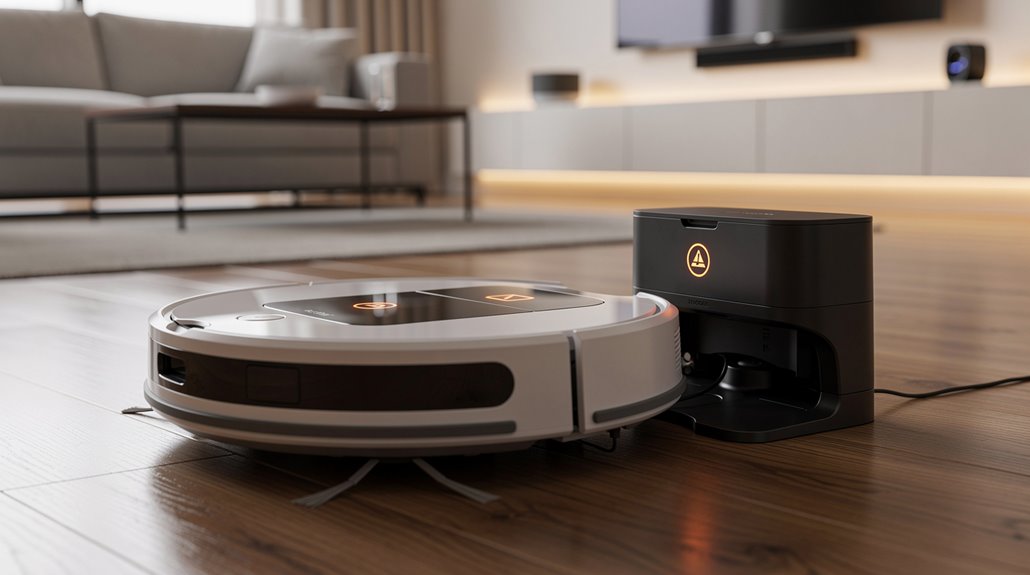
When your robot vacuum won’t charge or keeps shutting down mid-clean, you’re usually looking at one of a few specific problems: dirty contacts, a misaligned dock, a battery that’s wearing out, or a software hiccup.
Here’s what a robot vacuum charging error code typically means:
- Error 13 or 12: Clean charging contacts; verify dock power and positioning
- Error 46 or 24: Low battery; recharge fully before next cycle
- E21 or blinking red: Worn battery or overheating; consider replacement
If your robot doesn’t charge at all, check that the recharge sensor isn’t blocked by dust, as this can prevent the dock from properly communicating with your vacuum. For persistent charging failures after cleaning contacts and verifying dock positioning, software or firmware updates can often resolve charging or battery calibration issues without requiring hardware replacement.
How to Use the Manufacturer App to Identify Robot Vacuum Error Codes
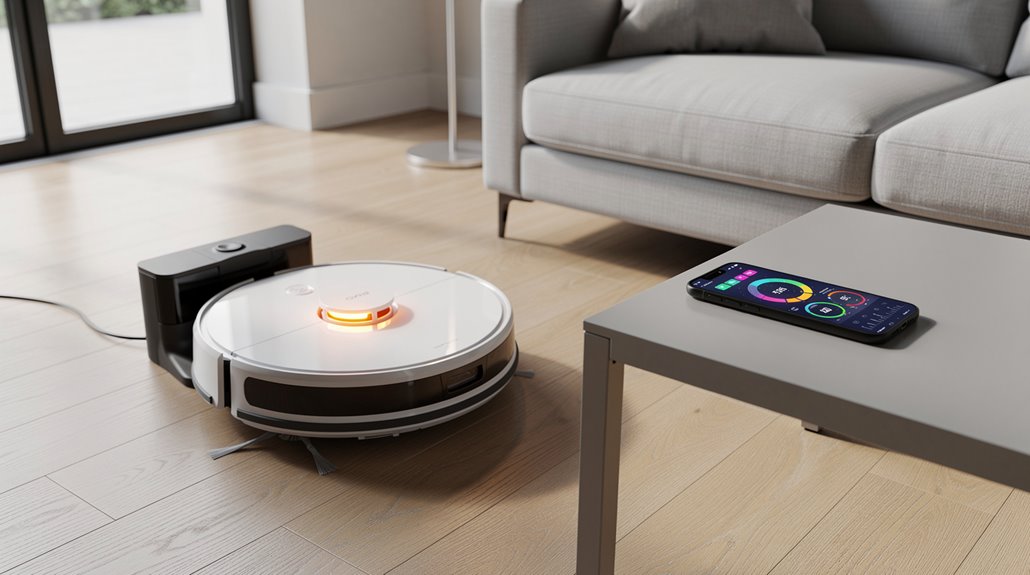
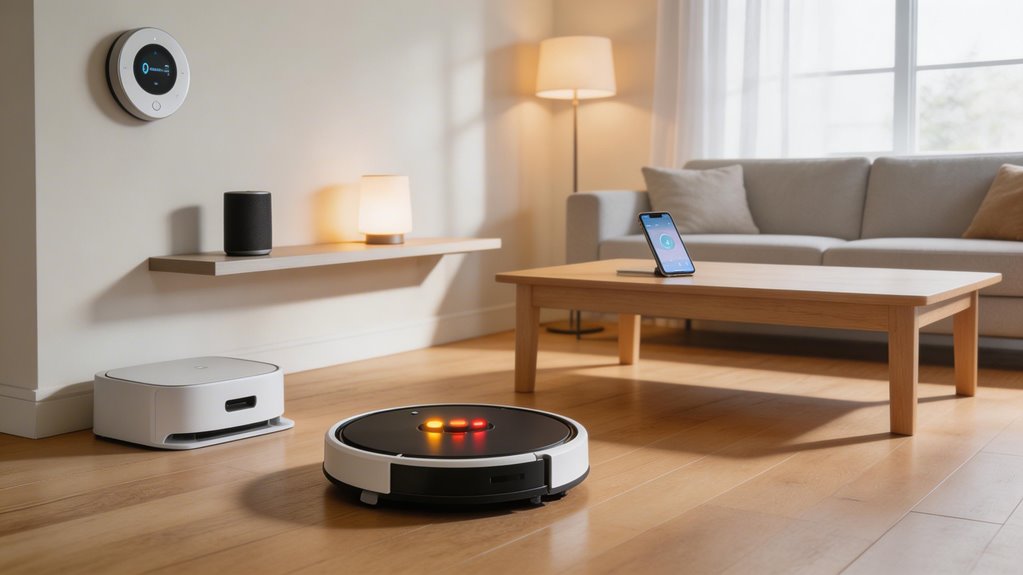
Your robot vacuum’s manufacturer app is built to translate what the vacuum’s microcontroller is detecting into readable diagnostics you can actually use. The app displays error numbers right on your home screen alongside notifications, lights, and sounds. This robot vacuum app error diagnosis system lets you pinpoint exactly which component’s failing without guesswork. However, persistent errors like Error 2 often indicate hidden drivetrain obstructions such as hair wrapped around brush axles or gummed-up gears rather than simple surface blockages, requiring deeper disassembly and inspection beyond initial cleaning attempts.
| Light Color | Button Location | What It Means |
|---|---|---|
| White flashing red | Clean button | Brush roll blockage |
| Red flashing red | Clean button | Suction motor failure |
| Flashing red | Dock button | Robot misaligned on base |
| Flashing red | Battery icon | Power adapter problem |
Different manufacturers use proprietary code ranges. Narwal uses 1001–1200. Shark uses single and double digits like 2, 3, or 10. Start by matching your error code to the manufacturer’s system, then check what component needs attention first.
When an Error Code Indicates the Robot Vacuum Needs Professional Servicing
Most robot vacuum error codes resolve with basic troubleshooting—clearing blockages, emptying bins, cleaning sensors—but some stick around no matter what you do. That’s when you need professional help. Watch for these situations:
Most robot vacuum errors resolve with basic troubleshooting, but persistent issues require professional support.
- Robot vacuum sensor error codes persisting after cleaning cliff sensors or the laser distance sensor
- System malfunctions like base station connection failures or mopping module issues unresolved by restarts
- Mechanical problems—bumper jams, wheel tangles, trapped robots—that don’t budge with standard fixes. When error codes are stored in firmware and continue to trigger despite repeated maintenance attempts, the microcontroller may require professional diagnostics to identify underlying hardware failures.
Contact support when troubleshooting fails.
Frequently Asked Questions
Can I Safely Ignore Certain Error Codes Without Affecting Vacuum Performance?
You can safely ignore certain sensor errors like dirty wall sensors or blocked bumpers temporarily without performance loss. However, you shouldn’t ignore critical codes like fan errors or battery temperature warnings, which halt cleaning entirely.
How Much Does Professional Robot Vacuum Repair Typically Cost?
You’re traversing a financial minefield when professional repairs hit your wallet. Expect to pay $300–$1,500 for full service, though setup and maintenance can climb to $10,000 depending on your robot’s complexity.
Why Does My Vacuum Show Error Codes After Firmware Updates?
Your vacuum shows error codes after firmware updates because the new software disrupts your robot’s internal configurations, corrupts mapping data, and creates connectivity glitches between your device and the base station.
Are Error Codes the Same Across Different Robot Vacuum Brands?
No, error codes aren’t the same across brands. You’ll find Roborock uses single digits, Narwal employs four-digit codes, and Shark lists varied numbers. Each brand assigns different meanings to similar issues, so you’ll need brand-specific guides.
What’s the Average Lifespan Before Error Codes Become Frequent?
You’ll typically see frequent error codes emerge around year 4 or 5. Here’s what’s telling: battery capacity drops to just 80% after 3-5 years of use, which directly triggers performance decline and error messages you can’t ignore.
Conclusion
You’ve now got the map to decode what your robot vacuum‘s actually trying to tell you. Most errors you’ll fix yourself—clearing wheels, wiping sensors, checking the dock connection. When you hit that one error code that keeps returning after you’ve troubleshot everything, that’s your signal to contact the manufacturer or a tech. Your vacuum’s speaking. You just needed the translation.