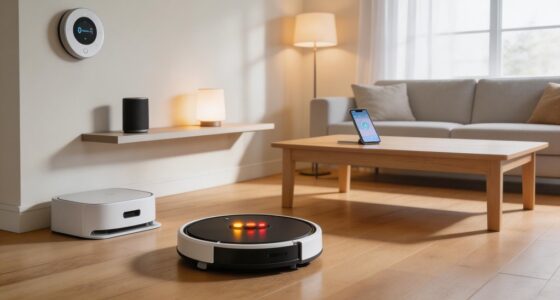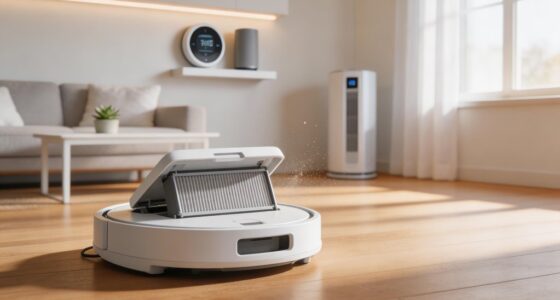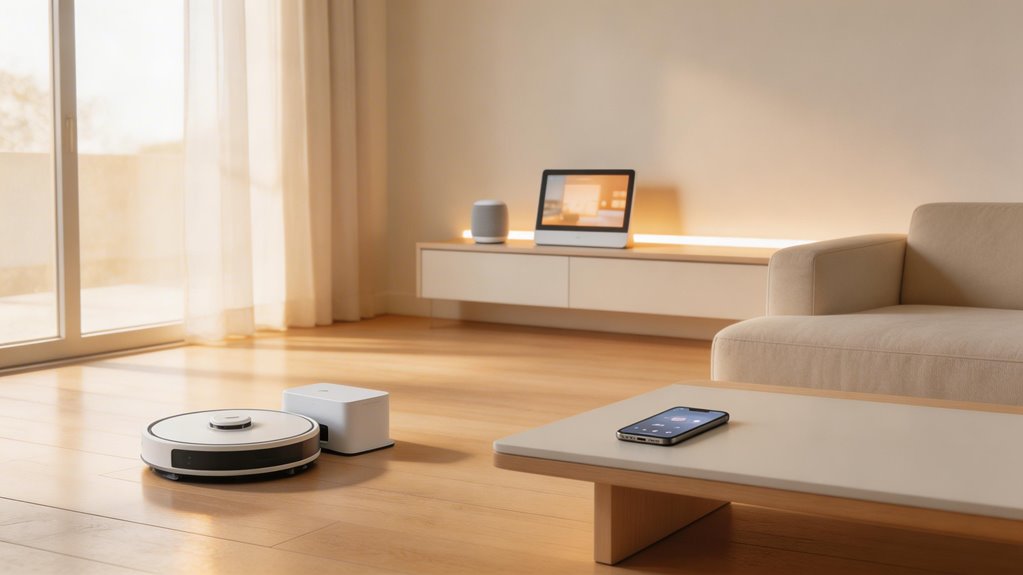
You can link most modern robot vacuums—iRobot Roomba, Roborock, Eufy, ECOVACS DEEBOT—to Google Home through their manufacturer apps by entering your existing credentials. You’ll get basic voice commands like start, stop, and dock, plus time-based scheduling through Google Home Routines. The catch: room-specific cleaning, no-go zones, and detailed mapping stay locked in the vacuum’s native app. You’re really managing two separate systems. Getting the right setup working smoothly depends on a few technical steps most people miss.
Key Points
- Link your manufacturer account to Google Home via the vacuum’s app authorization page for seamless device connection.
- Room-specific voice commands require pre-labeling rooms in the manufacturer app; basic start/stop commands work without mapping.
- Use 2.4 GHz networks, remove WiFi password special characters, and disable MAC address binding to ensure stable pairing.
- Advanced features like no-go zones and multi-floor mapping remain app-exclusive; Google Home handles only basic voice control.
- Recent software updates frequently cause disconnections; re-link accounts or contact manufacturer support if integration issues persist.
Which Robot Vacuum Brands Are Compatible with Google Home Integration
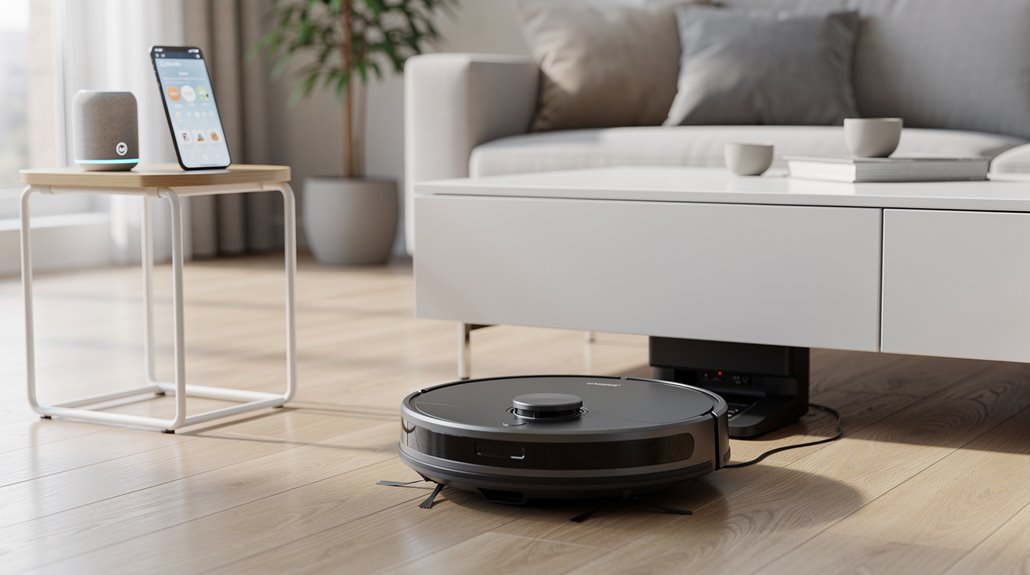
Several established vacuum makers have built Google Home compatibility into their lineups, though not every model from every brand works with it.
iRobot Roomba leads this category—models like the Max 705 and Plus 505 Combo integrate through their apps, letting you trigger cleaning sessions or check status with voice commands once you’ve set them up in Google Home. The Max 705 has demonstrated strong navigation capabilities that make it particularly effective for multi-room homes where voice control is beneficial.
Roborock and Eufy also support this robot vacuum Google Home integration through their respective apps.
How to Connect a Robot Vacuum to Google Home Step by Step
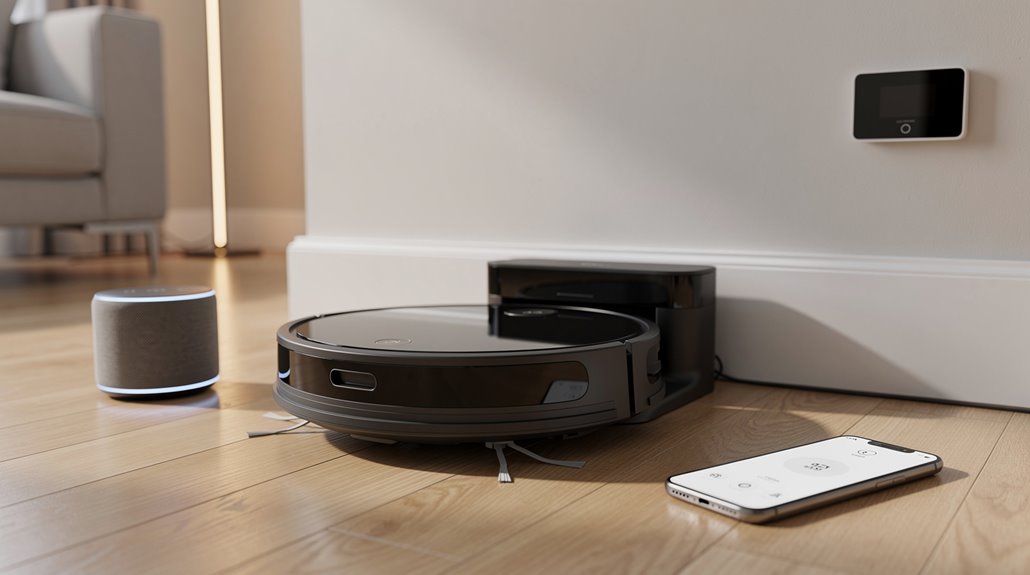
You’ll need to link your vacuum’s manufacturer account to Google Home first, which means logging in with your existing credentials during the setup process.
Once that’s done, you can configure voice commands so you’re able to tell Google to clean specific rooms rather than just triggering a general start command. This room-specific control actually requires you to set up device names and room assignments during the initial connection, so plan those details before you plunge into the app. For DEEBOT vacuums specifically, you’ll open the Google Home App, tap the + icon, select “Works with Google,” search for ECOVACS, and authorize your account to establish full compatibility. Setting up automation routines allows you to trigger cleaning sessions based on time, location, or other linked devices for enhanced convenience.
Linking the manufacturer account to Google Home app
To get your robot vacuum talking to Google Home, you’ll need to bridge two separate apps by linking your manufacturer account.
You’ll enter your robot vacuum manufacturer account credentials on the authorization page that pops up. Google Home verifies those details, then gains permission to connect with your vacuum device. Keep in mind that your vacuum’s token is auto-generated by the manufacturer for command authorization, so ensure you’ve extracted it correctly before attempting to link your devices.
If something goes wrong, just re-enter your information and try again. After successful linking, assign Home and Room to ensure your device appears in the main screen for both app and voice control.
How to configure voice commands for room-specific cleaning
Once your manufacturer account is linked to Google Home, the real control kicks in—but only if you’ve done the mapping work first. You’ll need to label rooms in your robot vacuum’s app before voice commands recognize them. Here’s what each brand supports:
| Brand | Room Mapping | Voice Command Example |
|---|---|---|
| ECOVACS DEEBOT | Quick mapping with labels | “Clean the kitchen” |
| iRobot Roomba | Imprint Smart Mapping | “Vacuum the sitting room” |
| Roborock | Google integration required | “Start cleaning bedroom” |
Your robot vacuum won’t understand room-specific voice commands without this setup. For more precise cleaning control, you can also adjust suction power directly through voice commands like “Google, set suction to normal” to customize performance for different room types and cleaning needs.
What Robot Vacuum Functions Work Through Google Home Voice Control
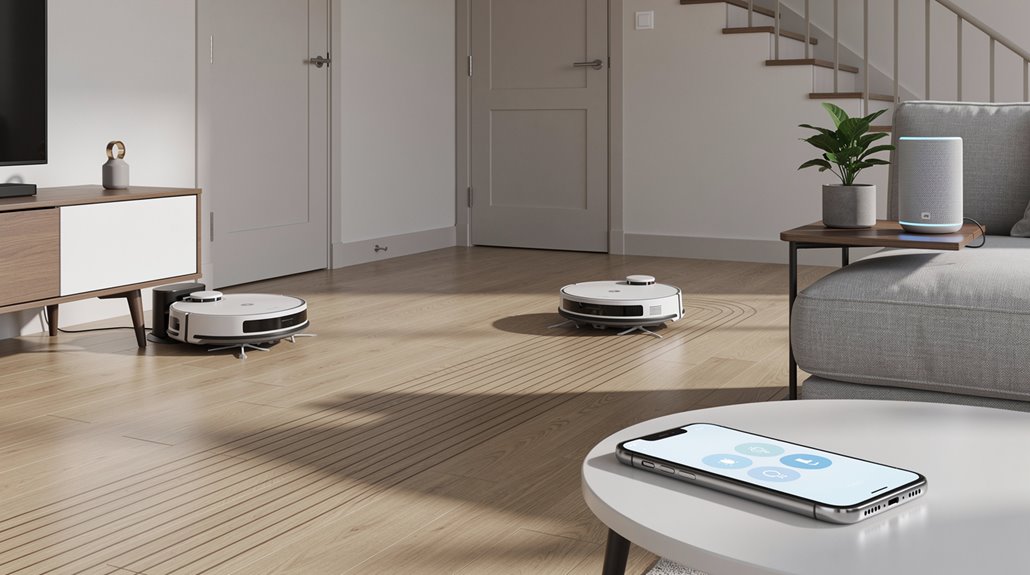
Google Home voice control works with robot vacuums in ways that go beyond just turning them on and off.
You can start, stop, and pause cleaning cycles with robot vacuum voice control google commands. You’ll also direct your vacuum to specific rooms, adjust suction modes, send it home to dock, or locate it if it’s wandered off.
Scheduling remains app-dependent though. For more advanced control options, you can use a compatible Nest smart speaker or smart display to access manual controls directly from your device.
What Robot Vacuum Features Remain App-Only Despite Google Home Integration
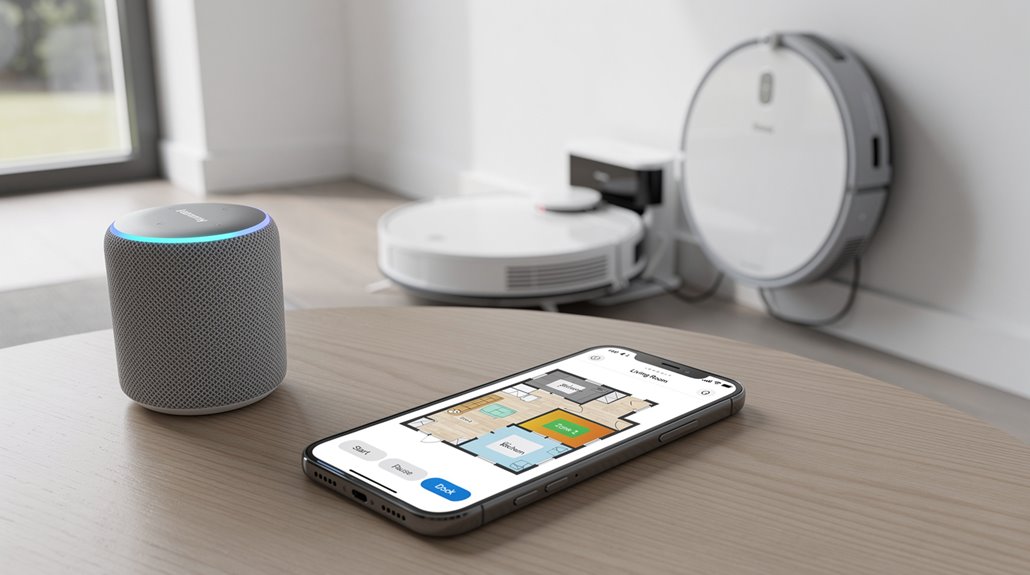
While Google Home handles basic commands like “start cleaning” or “return to dock,” you’ll find that detailed room mapping, boundary setting, and no-go zone configuration live exclusively in the manufacturer’s app.
The app also manages your automation routines—things like scheduling cleaning for specific rooms on certain days or triggering your vacuum when you leave home—because Google Home doesn’t support those conditional, multi-step sequences with robot vacuums. Many users prioritize room-based voice commands as a deciding factor in their purchase, though these require accurate map alignment and virtual wall setup in the app first. Keep in mind that cleaning performance fundamentals—suction, filtration, and brush system quality—remain more important than voice compatibility when selecting your robot vacuum.
This split creates a workflow where you use voice for quick commands but need to pull up the app whenever you want precision control or anything beyond start-and-stop.
Why advanced mapping features bypass Google Home entirely
When you connect a robot vacuum to Google Home, you’re getting voice control over the basics—start, stop, pause, maybe send it to its dock. But here’s where it stops. Advanced mapping stays locked in the manufacturer’s app. LiDAR data, obstacle avoidance settings, room labeling, no-go zones—all app-only. Google Home can’t touch them. Your vacuum’s brain works independently from your smart home system. The SLAM technology that enables real-time position tracking and path adjustments happens entirely within the vacuum’s onboard sensors and processing, never transmitting that navigational intelligence to Google Home’s interface. Most robot vacuums can reliably map and store 2–3 floors of your home, with advanced models handling up to 4 or more depending on system memory and capabilities.
| Feature | Google Home Access | App Access | Why It Matters |
|---|---|---|---|
| Start/Stop | Yes | Yes | Basic control works both ways |
| Room Labeling | No | Yes | Custom zones need app precision |
| No-Go Zones | No | Yes | Safety requires detailed map data |
| Navigation Settings | No | Yes | Path optimization lives in app |
| Floor Switching | No | Yes | Multi-story homes need app management |
How routine automation in Google Home interacts with robot vacuums
The app’s stranglehold on advanced features doesn’t end once you’ve connected your vacuum to Google Home—it actually gets more complicated when you try to automate routines.
Your google home robot vacuum routine can handle basic commands like start and stop, but scheduling, no-go zones, and room-specific cleaning stay locked in the manufacturer’s app. You’re managing two separate systems instead of one unified control center. Recent simultaneous updates from manufacturers have introduced integration issues that further complicate this fragmentation, with some users experiencing daily disconnections that require frequent relinks.
Based on user reports from the Wyze community, Alexa integration has launched for robot vacuums, but Google Home support remains limited to basic voice commands and lacks the advanced automation capabilities available through native app controls.
How Google Home Routines Can Automate Robot Vacuum Cleaning Schedules
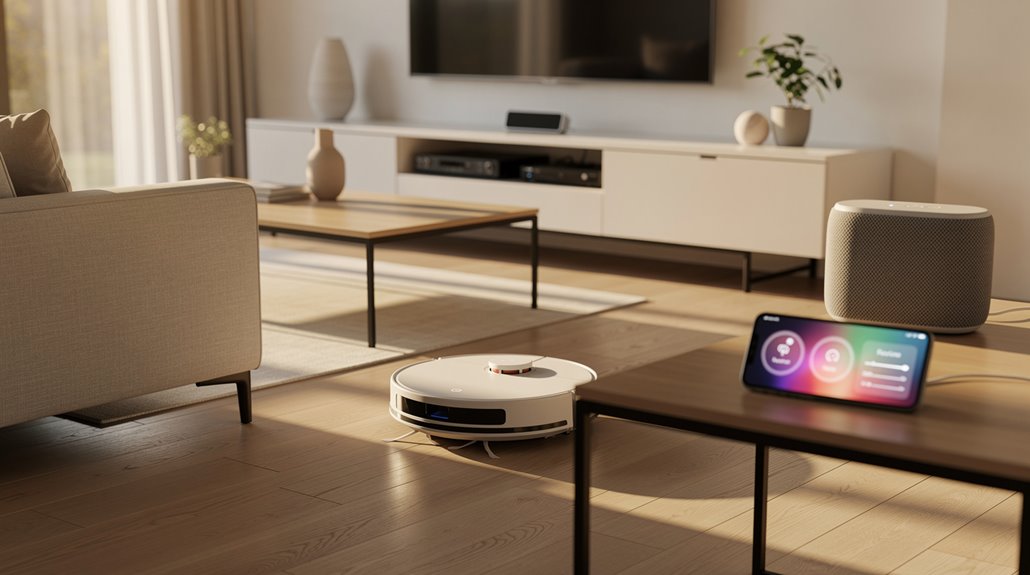
Google Home routines give you a straightforward way to automate when your robot vacuum runs without having to think about it.
Google Home routines automate your robot vacuum effortlessly, eliminating the need for manual scheduling and constant oversight.
You can set up your google home robot vacuum setup through:
- Time-based scheduling at specific times daily
- Voice command triggers like “Let’s clean”
- Multi-device coordination with lights or AC
- Weekday and weekend variation options
Not all vacuum models integrate as standard devices, though custom action commands sometimes bridge the gap. If your vacuum doesn’t appear in the device list despite being linked through a service like iRobot Smart Home, you can use custom typed commands to control it directly within your routine.
Troubleshooting Robot Vacuum Google Home Connection Problems
While Google Home routines can handle the scheduling side smoothly, you’ll run into a different problem once your vacuum actually tries to connect—and it’s more common than you’d think.
When you robot vacuum google home troubleshoot, start with basics: disable MAC address binding on your router, switch to 2.4 GHz networks, and remove special characters from WiFi passwords. Ensure your mobile device is connected to the 2.4 GHz network during setup to maintain a stable pairing connection.
Factory reset your vacuum with a five-second home button hold.
If it’s still offline, you’re likely facing a manufacturer software compatibility issue that requires escalation. Recent simultaneous updates to both the Shark app and Google Home connector have been identified as a primary cause of widespread connection failures across certain vacuum models.
Frequently Asked Questions
Can I Control Multiple Robot Vacuums Simultaneously Through a Single Google Home Device?
Yes, you can control multiple robot vacuums simultaneously through a single Google Home device. You’ll need to assign unique names to each vacuum and link their brand accounts once. Then you’ll specify which robot you want using voice commands.
Does Google Home Work With Older Robot Vacuum Models From Previous Years?
You can control older robot vacuums through Google Home, though compatibility varies by brand and model. Check your vacuum’s manufacturer specs to confirm support, as some older units may only handle basic commands like start and stop.
What Happens to My Robot Vacuum if My Internet Connection Drops Temporarily?
Have you considered what your vacuum does when you can’t see it? Your robot continues cleaning physically, but you’ll lose app control and Google Home commands. It forgets your charging dock’s location, requiring manual intervention or redocking.
Can I Create Custom Voice Commands Beyond the Standard Google Home Vacuum Controls?
You can’t create entirely new vacuum functions, but you’ll use Google Home Routines to craft custom phrases triggering standard commands. You’ll combine vacuum actions with other smart home controls like lights or announcements simultaneously.
Is My Robot Vacuum Data Secure When Connected to Google Home and Google’s Servers?
Your robot vacuum’s data isn’t completely secure when connected to Google Home. You’re sharing floor maps, camera footage, and usage patterns with Google’s servers. You’ll want encryption enabled, firmware updated, and consider isolating your vacuum on a separate network.
Conclusion
You’ve now got your vacuum talking to Google Home, which is funny because you still can’t tell it to clean your bedroom—only your living room. Voice control sounds transformative until you realize you’re still opening the app half the time anyway. The integration handles the basics well, but it’s a partial solution dressed up as a complete one. Useful? Sure. Life-changing? Not quite.